

How to Connect a PS5 Controller to PC (Wired, Bluetooth & Steam)

Connecting a PS5 controller to PC is straightforward on the surface: plug it in or pair it over Bluetooth and Windows sees it within seconds. The part that actually trips people up is everything after that, since a DualSense that's technically connected doesn't automatically mean your games know what to do with it.
I've gone through this setup on three different PCs at this point, and the USB cable is genuinely the one I'd tell a friend to start with, even though Bluetooth feels like the "proper" way to do it.
Quick answer: plug the controller into your PC with a USB-C cable, Windows installs it automatically with no extra software, and it just works in Steam immediately. For wireless, pair it through Windows Bluetooth settings, then turn on "PlayStation Configuration Support" in Steam's controller settings so games actually map the buttons correctly.
Key takeaways:
- USB is the most reliable connection method and needs zero extra software. Bluetooth is more convenient but adds a pairing step and a slightly higher chance of input lag or drops.
- Steam has proper native DualSense support, but it has to be turned on manually. It's not automatic even after the controller connects.
- Outside Steam, a lot of PC games don't recognize the DualSense's button layout correctly without a third-party tool like DS4Windows.
- A USB-C cable that only charges (no data lines) will power the controller on but never let your PC actually detect it, which looks exactly like a broken controller if you don't know to check.
Which Connection Method Should You Use?
| Method | Best for | Setup effort |
|---|---|---|
| USB cable | Most reliable, zero setup, no lag | Lowest |
| Bluetooth | Wireless convenience, couch gaming | Low, one-time pairing |
| Steam (either connection) | Full button mapping in Steam and Steam-launched games | One checkbox, once |
| DS4Windows / DualSenseX | Non-Steam games that don't recognize DualSense | Moderate, third-party tool |
Why the DualSense Doesn't "Just Work" Like an Xbox Controller
Windows has native, built-in support for the Xbox controller's input standard, called XInput, and most PC games are built expecting it. The DualSense doesn't speak XInput at all. It shows up to Windows as a generic HID (Human Interface Device) game controller instead, which is a much older, more basic standard that doesn't map PlayStation's button layout, triggers, or extra features cleanly.
That's not a bug, it's just a different design lineage, but it's the entire reason a DualSense can be "connected" and still not work right in a specific game. Steam solves this by translating the DualSense's input into a virtual Xbox controller behind the scenes, which is why turning on Steam's PlayStation support matters so much more than it sounds like it should.
Worth knowing upfront and being honest about: PC support for DualSense-specific features like adaptive triggers and haptic feedback is limited to a small handful of games that specifically built for it. Don't expect the same feel you get on a PS5 itself.
Before You Start: What You'll Need
A USB-C to USB-A (or USB-C to USB-C) cable that actually carries data, not just power. A lot of charging-only cables that came in the box with other devices look identical but won't transfer any data at all. If you're not sure, the cable that came with the PS5 console itself is a safe bet.
For Bluetooth, just Windows' built-in Bluetooth, no adapter needed on most modern PCs, though a cheap USB Bluetooth adapter works fine if your desktop doesn't have Bluetooth built in.
Method 1: Connect a PS5 Controller to PC With a USB Cable (Easiest, Most Reliable)
Step 1: Plug the Cable Into the Controller
Use the USB-C port on the top edge of the DualSense.
Step 2: Plug the Other End Into Your PC
Any USB port works. Windows installs the driver automatically, no download needed, and you'll see a brief notification confirming the device was set up.
Step 3: Confirm It's Working
Open Steam, or any game, and move the sticks. If Steam is running, you'll see the controller icon light up in the top-right corner of the Steam window.
This is genuinely the fix I'd reach for first if you're short on time or just want it working right now. Bluetooth is nicer day to day, but wired removes an entire category of problems before they can happen.
Method 2: Pair the Controller Over Bluetooth
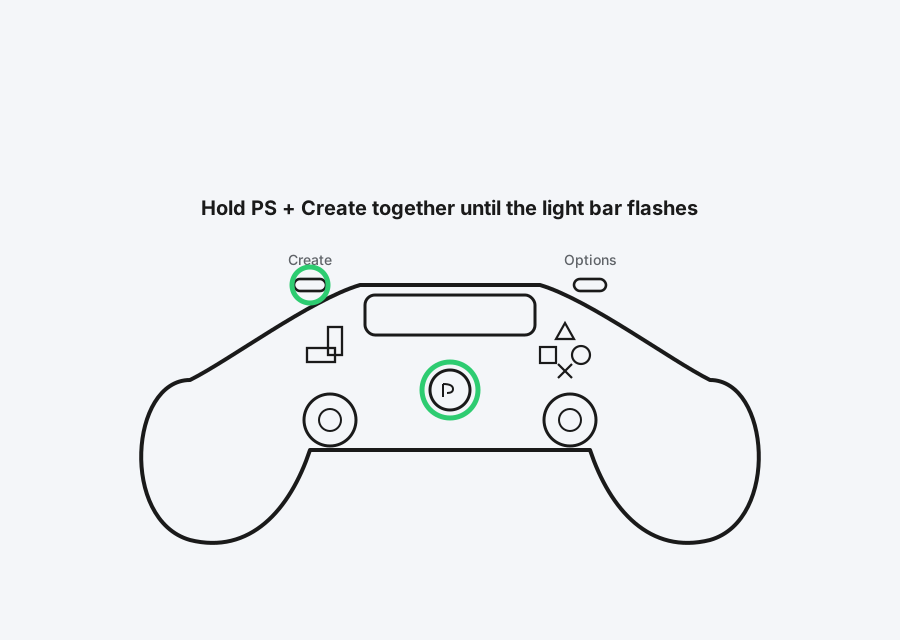
Step 1: Put the Controller in Pairing Mode
Hold the PS button and the Create button (the small button to the left of the touchpad, where the old Share button used to be) together for about 3 to 5 seconds, until the light bar starts flashing rapidly. A slow pulse means it's just powered on, not in pairing mode, so wait for the fast flash specifically.
Step 2: Add It in Windows Bluetooth Settings
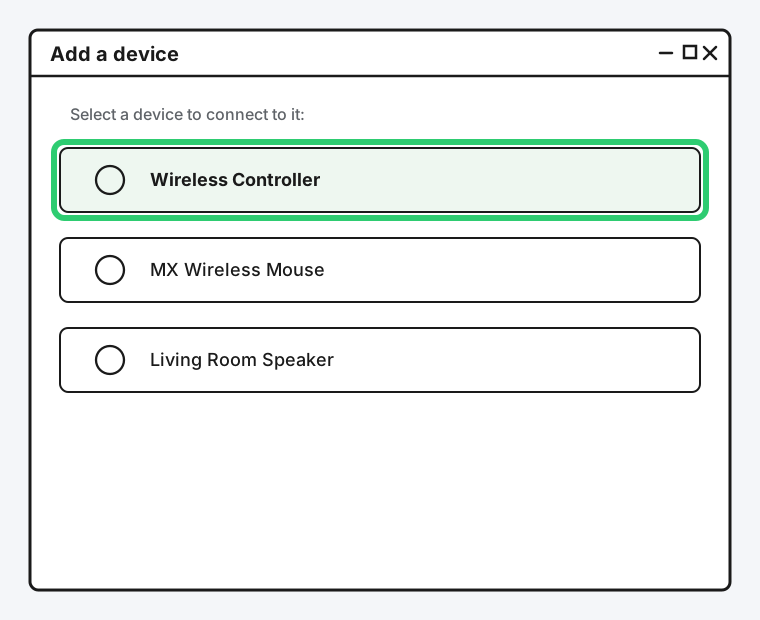
Go to Settings > Bluetooth & devices > Add device > Bluetooth. The controller will show up as "Wireless Controller," the same broadcast name Sony has used since the DualShock 4. Select it.
Step 3: Confirm It's Connected
The light bar switches to a steady color once pairing finishes, and the device shows as "Connected" back in Bluetooth & devices. If it hangs on pairing or doesn't show up at all, that's a general Bluetooth pairing problem at that point, not a controller-specific one, and worth checking against a dedicated Bluetooth pairing troubleshooting guide rather than this one.
Method 3: Enable Full PlayStation Support in Steam
This is the step that actually makes the DualSense behave correctly in games, and it's easy to miss because the controller already "works" without it, just with wrong or missing button mappings in a lot of titles.
Step 1: Open Steam's Controller Settings
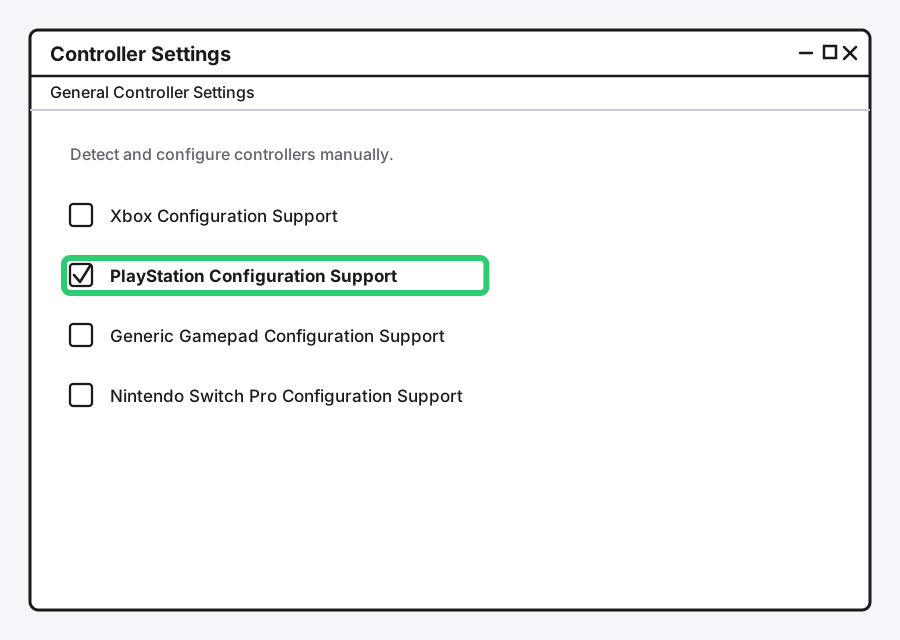
In Steam, go to Steam > Settings > Controller > General Controller Settings.
Step 2: Turn On PlayStation Configuration Support
Check the box for "PlayStation Configuration Support." This is what enables Steam Input to properly translate the DualSense as a full Xbox-equivalent controller for any game you launch through Steam.
Step 3: Restart Any Game That Was Already Running
Steam Input applies when a game launches, not retroactively, so close and reopen anything that was already open when you made this change.
Using the DualSense Outside Steam (Non-Steam Games)
For games launched outside Steam entirely, an Epic Games Store title, a standalone launcher, you're back to the DualSense's raw HID input, and plenty of games handle that fine on their own now. If a specific game doesn't recognize the controller correctly, a tool like DS4Windows or DualSenseX can translate it into a virtual Xbox controller system-wide, not just inside Steam.
I'll say this plainly: these are solid, widely used community tools, but they are third-party software, not something Sony or Microsoft maintains, so install them from their actual official project pages, not a random download site, and expect the occasional update-related hiccup after a Windows update.
How to Confirm Windows Actually Recognizes the Controller
If something feels off and you want to rule out Windows itself before blaming a specific game, this takes ten seconds.
Step 1: Open the Game Controllers Panel
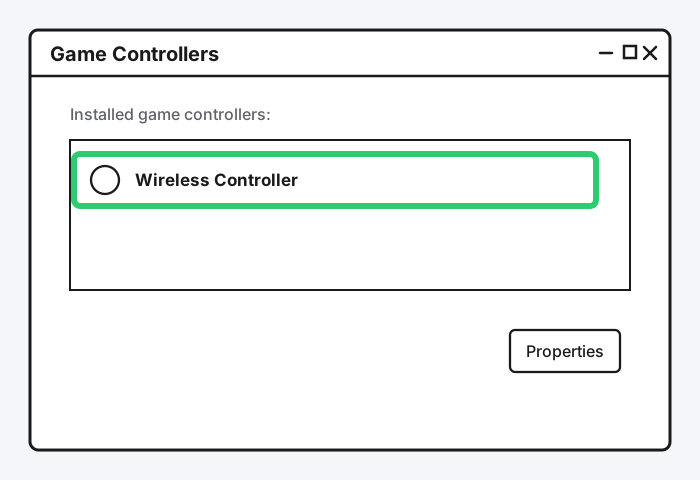
Press Windows key + R, type joy.cpl, and press Enter.
Step 2: Check That It's Listed
You should see "Wireless Controller" in the list. If it's there, Windows has it correctly recognized at the system level, and any remaining issue is specific to whatever game or software you're using.
Step 3: Test the Inputs
Select it and click Properties to open a test screen showing button presses and stick movement live. This is the fastest way to confirm a suspected drift or dead-zone problem is real, and not just a specific game's settings.
Common Connection Problems
Controller Charges But Won't Connect
This is almost always a charge-only USB cable. It has power lines but no data lines, so the controller lights up and even charges, but Windows never sees it as a device at all. Try a different cable before assuming anything else is wrong.
Controller Pairs But Games Don't Detect It
Almost always the Steam PlayStation Configuration Support setting from Method 3, or the game simply not supporting HID controllers directly if you're outside Steam. Check Method 3 first.
Bluetooth Keeps Disconnecting Mid-Game
Usually range, interference from a nearby USB 3.0 port or hub, or the controller's battery running low enough that it's dropping the connection to save power. Wired is the more reliable fallback if this keeps happening during something that actually matters.
Still Not Working?
If the controller won't connect at all, even over USB, or Windows fails to recognize it no matter what cable or port you try, it's worth checking whether the controller itself has a fault. PlayStation's own controller support page covers hardware troubleshooting and warranty options if the DualSense itself turns out to be the problem rather than the PC side of things.
Frequently Asked Questions
Does a PS5 controller work on PC without Steam?
Yes, Windows recognizes it as a generic HID controller with no extra software needed, though button mapping in individual games can be inconsistent without Steam's translation layer or a tool like DS4Windows.
Why is my PS5 controller connected but not working in my game?
The most common cause is Steam's "PlayStation Configuration Support" not being turned on, which means the game is receiving raw, unmapped input instead of a proper controller signal. Check Method 3.
Can I use a PS5 controller and keyboard and mouse at the same time?
Yes, Windows treats them as entirely separate input devices, so there's no conflict, though most games will only respond to one input method's prompts on screen at a time.
Do adaptive triggers and haptic feedback work on PC?
Only in a small number of games specifically built to support DualSense's PC-side features. Most PC games treat the controller like a standard gamepad and won't use these features at all, which is worth knowing so you're not troubleshooting something that was never going to work.
Is Bluetooth or USB better for gaming specifically?
USB, for anything where input delay matters. Bluetooth introduces a small amount of extra latency and is more prone to interference, which is rarely noticeable for casual play but is worth avoiding for competitive or fast-reaction games.
Quick Summary
Start with a USB cable if you want the simplest, most reliable connection with zero setup. For wireless, hold PS and Create together until the light bar flashes fast, then pair it through Windows Bluetooth settings like any other device. Either way, the step that actually fixes most "it's connected but not working right" complaints is turning on PlayStation Configuration Support in Steam's controller settings, not the connection method itself. Outside Steam, a tool like DS4Windows fills the gap for games that don't recognize the DualSense on their own.
Related Articles
Xbox Controller Not Connecting to PC? Here's How to Fix It (2026)
Xbox controller not connecting to PC usually comes down to Bluetooth vs. the proper Xbox Wireless protocol, a driver issue, or a cable that only charges. Here's how to work through all of them.