

CarPlay Not Working? Here's How to Fix It (2026)

CarPlay not working almost always traces back to one of a small number of causes, and most of them have nothing to do with your car itself. Apple CarPlay not working after an update, after switching cars, or completely out of nowhere on a car that's worked fine for months all point to a shorter list of fixes than it feels like in the moment.
I've had this happen mid-drive, plugged in, unplugged, plugged back in, and assumed it was the cable, when it turned out Screen Time had quietly relabeled CarPlay as a restricted app after an iOS update.
Quick answer: start with the cable and the specific USB port you're using, since a surprising number of "CarPlay not working" cases are just a charge-only port or a non-MFi cable that can charge your phone but can't carry CarPlay's data. If that checks out, the next most common cause is a setting, either CarPlay disabled for that specific car in iPhone Settings, or Screen Time blocking it entirely.
Key takeaways:
- Not every USB port in your car supports CarPlay's data connection, some are charge-only, and using the wrong one looks identical to a broken connection.
- CarPlay can be turned off for one specific paired car without affecting any other car you've used it with, which is easy to trigger by accident.
- Screen Time's Content & Privacy Restrictions can block CarPlay under Allowed Apps, and this is a genuinely common, easy-to-miss cause after setting up parental controls or a new device.
- Wireless CarPlay needs both Bluetooth and Wi-Fi turned on, not just Bluetooth, since it uses Wi-Fi for the actual video and audio streaming after Bluetooth handles the initial handshake.
Quick Diagnostic: What's Actually Going Wrong?
| What you're seeing | Likely cause | Try this first |
|---|---|---|
| CarPlay worked before, now the wire just charges the phone | Wrong USB port or a charge-only cable | Method 1 |
| Wireless CarPlay won't connect at all | Wi-Fi turned off, or Bluetooth/Wi-Fi pairing issue | Method 2 |
| CarPlay used to work in this exact car, now it doesn't | Disabled for that car specifically | Method 3 |
| Never worked, or stopped after setting up parental controls | Screen Time restriction | Method 4 |
| Connects but freezes, disconnects randomly, or is slow to load | Needs a restart on one or both ends | Method 5 |
| Worked before, now nothing happens when you plug in or select the car | The pairing itself is corrupted | Method 6 |
| Using a wireless CarPlay adapter dongle, not built-in wireless | Adapter-specific pairing or firmware issue | Method 8 |
Why "CarPlay Not Working" Usually Isn't a CarPlay Problem
CarPlay itself is just the pipeline, your car's screen mirrors what your iPhone sends over either a wired USB connection or a wireless Wi-Fi/Bluetooth combination. When people say CarPlay isn't working, what's actually broken is almost always one of the two things carrying that connection: the physical wire and port on the wired side, or the Bluetooth-then-Wi-Fi handshake on the wireless side. Apple's own software rarely fails outright, it just can't establish or hold that connection.
That's why the fixes below start with the connection itself before touching any actual CarPlay settings, since a cable or port problem looks exactly like a software problem from the driver's seat.
Method 1: Check Your Cable and USB Port
This is the most common cause by a wide margin, and it's the easiest to rule out first.
Step 1: Confirm It's an MFi-Certified Cable
Apple requires cables to be MFi-certified (Made for iPhone) to carry CarPlay's data, not just charge the phone. A cable that came in the box with your iPhone is safe. A cheap or damaged third-party cable, especially one that's been kept in a car for a while, is a common silent failure.
Step 2: Use the Right USB Port
Many cars have multiple USB ports, and not all of them are wired for data, some are strictly charge-only, especially in back seats or center console auxiliary slots.
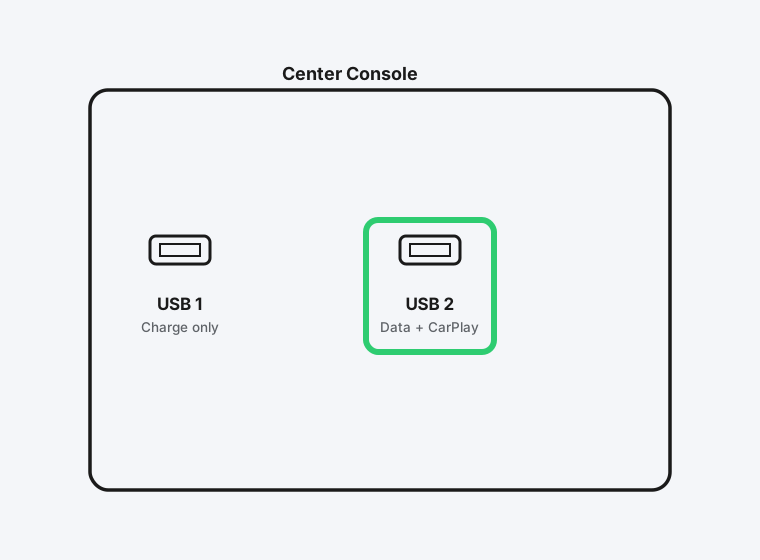
Check your car's manual for which port specifically supports CarPlay, it's often marked with a small phone or CarPlay icon directly on the port itself.
Step 3: Try a Different Cable Entirely
If you have a second MFi-certified cable, swap it in. This isolates whether it's the cable or the port in about ten seconds.
Method 2: Fix Wireless CarPlay Specifically
Wireless CarPlay has one extra requirement that wired CarPlay doesn't: your iPhone's Wi-Fi has to be turned on, not just Bluetooth.
Step 1: Confirm Both Bluetooth and Wi-Fi Are On
Bluetooth handles the initial handshake between your phone and the car, but the actual audio and video stream travels over a direct Wi-Fi connection between the two. If Wi-Fi is off, wireless CarPlay won't connect even though Bluetooth pairs successfully.
Step 2: Forget and Re-Pair the Car's Bluetooth Connection
Go to Settings > Bluetooth, tap the info icon next to your car, and choose Forget This Device. Then re-pair from scratch through your car's own Bluetooth pairing menu.
Step 3: Stay Within Range During the Initial Connection
Wireless CarPlay's first connection after a phone restart or a forget-and-re-pair can be slower to establish than a routine reconnect. Give it 20 to 30 seconds with the phone inside the car before assuming it's failed.
Method 3: Check If CarPlay Is Disabled for This Specific Car
CarPlay settings on iPhone are stored per car, not globally, which means it's entirely possible to have CarPlay working fine in general while it's specifically turned off for the one car you're currently trying to use.
Step 1: Open CarPlay Settings
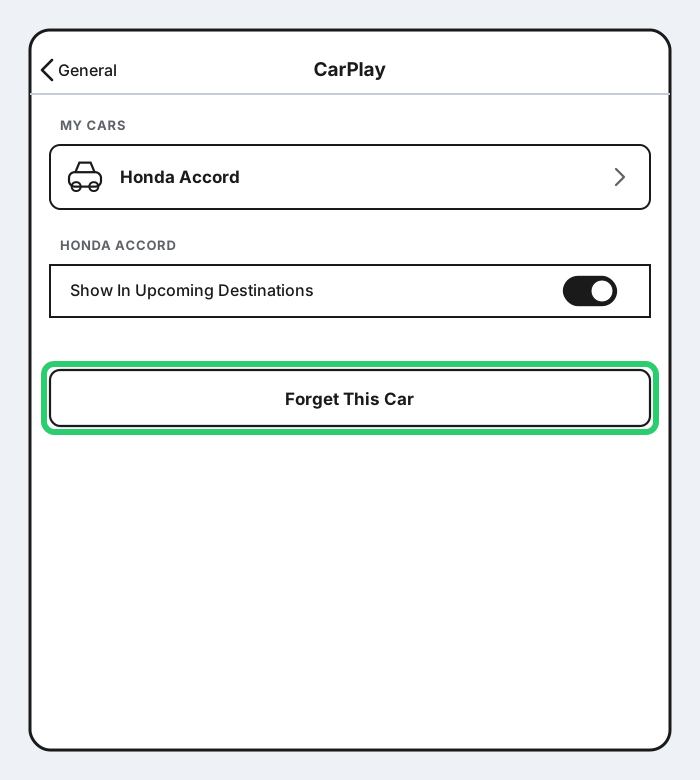
Go to Settings > General > CarPlay, and tap on the car you're having trouble with.
Step 2: Check for a Forget This Car Option
If the car is listed with a Forget This Car button, that's actually a sign it's still recognized, tap it, then reconnect the cable or reselect the car from your Bluetooth list to force a fresh pairing.
Step 3: Re-Add the Car If It's Missing Entirely
If the car isn't listed at all anymore, plug in or connect via Bluetooth as if setting it up for the first time, iOS will prompt you to allow CarPlay for that car.
Method 4: Check Screen Time Restrictions
This is the one people miss most often, because it has nothing to do with CarPlay's own settings menu at all.
Step 1: Open Content & Privacy Restrictions
Go to Settings > Screen Time > Content & Privacy Restrictions. If this is turned on, continue to the next step. If it's off, CarPlay isn't the issue here.
Step 2: Check Allowed Apps
Tap Allowed Apps and look for CarPlay in the list. If its toggle is off, that alone fully explains CarPlay not working, no cable or Bluetooth troubleshooting will fix a restriction turned on at this level.
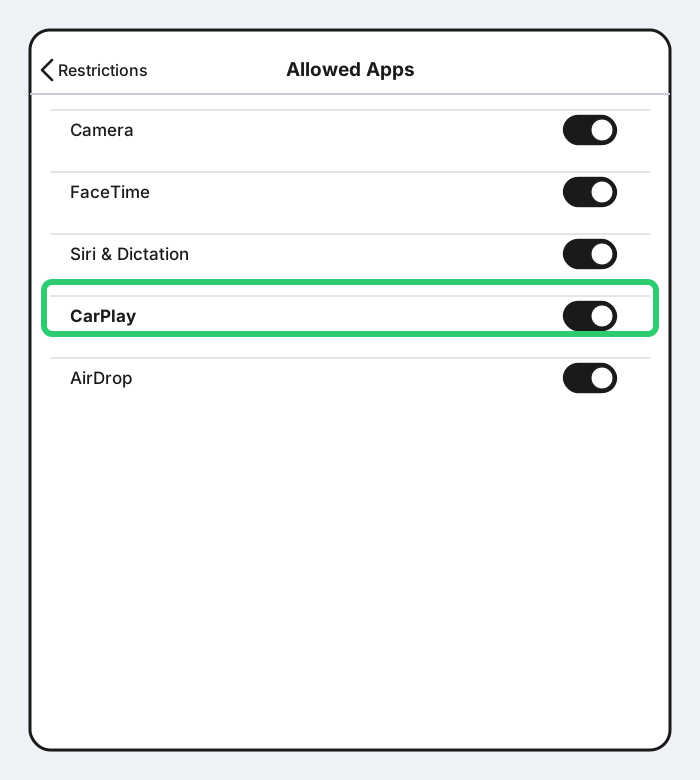
Step 3: Turn It Back On
Switch the CarPlay toggle on. If Screen Time is managed by a Family Sharing organizer and you can't change it yourself, that's who needs to make this change.
Method 5: Restart Both Devices
A basic restart resolves more CarPlay issues than it should, mostly because both your iPhone and your car's infotainment system are running their own software that can end up in a stuck state independently of each other.
Step 1: Restart Your iPhone
A full restart, not just locking and unlocking it, clears out any stuck background process that might be interfering with the CarPlay connection.
Step 2: Restart Your Car's Infotainment System
This varies by car, some let you hold the power/volume button on the head unit itself, others require turning the car fully off for a minute. Check your car's manual if you're not sure how.
Step 3: Reconnect From Scratch
Plug the cable back in, or reselect the car from your Bluetooth list for wireless, after both devices have fully restarted.
Method 6: Forget the Car and Start the Pairing Over
If CarPlay used to work and nothing above has fixed it, the stored pairing information itself may be corrupted, the same category of issue that shows up in Bluetooth pairing generally.
Go back to Settings > General > CarPlay, tap the car, choose Forget This Car, then set it up again as if it were new. This clears out whatever stored configuration might be causing the silent failure.
Method 7: Update Your Car's Head Unit Software
Car manufacturers push firmware updates to their infotainment systems less often and less visibly than Apple pushes iOS updates, but an outdated head unit is a real, if less common, cause, especially after an iOS update changes something on Apple's side that an old car software version doesn't handle correctly.
Check your car manufacturer's app or your dealership for available infotainment updates. This process varies significantly between manufacturers, some update over Wi-Fi, others require a USB drive or a dealership visit.
Method 8: Troubleshoot a Wireless CarPlay Adapter
If your car doesn't have wireless CarPlay built in and you're using a third-party adapter dongle plugged into the wired USB port, it's a slightly different, separate device to troubleshoot.
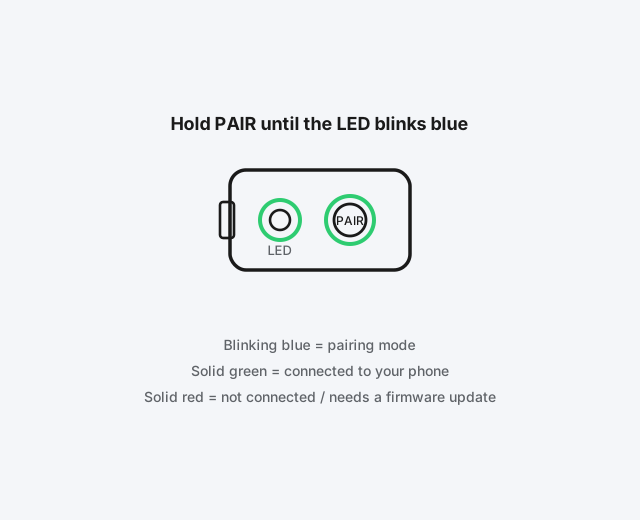
Step 1: Check the LED Status
Most adapters use an LED color to indicate their state, refer to your specific adapter's manual, but blinking usually means pairing mode, solid usually means connected, and an unusual color often signals an error or a firmware issue.
Step 2: Re-Pair the Adapter
Hold the adapter's pairing button until the LED indicates pairing mode, then reconnect through your iPhone's Bluetooth settings the same way you would for the car directly.
Step 3: Check for a Firmware Update
Many wireless CarPlay adapters have a companion app specifically for firmware updates, an outdated adapter is a common cause of intermittent disconnects even after a successful initial pairing.
Still Not Working?
If you've worked through all of this and CarPlay still won't connect, it's worth checking Apple's own CarPlay support page for anything specific to your car's make and model, since a handful of vehicles have known, documented quirks. Your car manufacturer's own support line is also worth a call at that point, since they can rule out an issue with the infotainment hardware itself that's outside what any iPhone setting can fix.
Frequently Asked Questions
Why does CarPlay work in one car but not another?
CarPlay settings and pairing information are stored per car on your iPhone, so it's entirely possible for one car to work perfectly while another, even the same make and model, has its own separate connection that needs troubleshooting.
Does a cheap USB cable actually make a difference for CarPlay?
Yes, genuinely. CarPlay needs a cable capable of carrying data, not just power, and a non-MFi-certified cable can charge your phone just fine while being completely incapable of the data connection CarPlay requires.
Can Screen Time really block CarPlay?
Yes, if Content & Privacy Restrictions is enabled and CarPlay isn't toggled on under Allowed Apps, that setting overrides everything else, no amount of cable or Bluetooth troubleshooting will fix a restriction at that level.
Does wireless CarPlay need an internet connection?
No, it uses a direct Wi-Fi connection between your iPhone and the car itself, not an internet connection, so it works the same in an area with no cell signal at all.
Why does my wireless CarPlay adapter keep disconnecting?
This is usually either a firmware issue on the adapter itself, worth checking its companion app for updates, or the adapter losing its paired connection, which a fresh forget-and-re-pair through Bluetooth settings often resolves.
Quick Summary
Start with the physical connection: confirm you're using an MFi-certified cable in a port your car actually supports for CarPlay data, not just charging. For wireless CarPlay, make sure both Bluetooth and Wi-Fi are on, not just Bluetooth. If the connection itself checks out, check Settings > General > CarPlay for that specific car, and Settings > Screen Time > Content & Privacy Restrictions > Allowed Apps, since a restriction there silently overrides everything else. Restarting both your iPhone and the car's infotainment system resolves a good portion of what's left, and forgetting the car to re-pair from scratch is the reliable last step before it's worth a call to your car's manufacturer.