

How to Fix Bluetooth Pairing Issues (Windows, 2026)

Bluetooth pairing issues are a different animal from Bluetooth just being off or broken. If your Bluetooth toggle is on, Windows can see the radio is working, and a specific device still won't pair, restarting services isn't going to help. The problem is almost always in the pairing handshake itself, and it usually falls into one of five specific patterns once you know what to look for.
I keep a spare Bluetooth keyboard around specifically for testing this stuff, and it's failed to pair in at least four genuinely different ways over the years. None of them were fixed by turning Bluetooth off and on.
Quick answer: the single most common cause is a leftover pairing record. If you've paired the device with this PC before, or it's currently paired to a phone or another computer, remove it from Windows' device list first and pair it as if it were brand new. That alone resolves most stuck pairings.
Key takeaways:
- Old pairing records cause more failed pairings than any actual hardware or driver problem.
- Most Bluetooth accessories only accept one active connection at a time. If a device is paired to your phone, it likely won't show up for your PC until you disconnect it there first.
- A device stuck on "Connecting..." for more than about 30 seconds isn't going to finish on its own. Remove it and start over.
- Each accessory type (keyboard, mouse, headphones) has its own pairing-mode gesture, and getting that wrong is one of the most common reasons "Add device" never finds anything.
Which Pairing Problem Do You Have?
| What's happening | Likely cause | Try this |
|---|---|---|
| Device won't show up in "Add a device" at all | Not actually in pairing mode, or already paired elsewhere | Method 2 |
| Device shows up but pairing fails or errors out | Old pairing record conflicting | Method 1 |
| A code or PIN appears and you're not sure what to do | Normal passcode confirmation step | Method 3 |
| Device sits on "Connecting..." indefinitely | Stalled handshake | Method 5 |
| Device pairs, but disconnects constantly afterward | Interference or range | Method 6 |
What Causes Bluetooth Pairing Issues in the First Place
Bluetooth pairing is a two-way handshake, not a one-sided connection. Both devices have to agree on an encryption key, and Windows stores that key once pairing succeeds. The trouble starts when that stored key goes stale, which happens more than you'd expect: the device got re-paired to a phone since, its firmware updated, or Windows itself lost track of it after a system update. Windows still shows the old pairing as valid, tries to use a key that no longer matches, and the handshake fails silently or with a vague error.
The other major cause is simpler: most Bluetooth accessories, especially budget ones, only maintain one active pairing slot per "profile." A mouse that's currently paired to your laptop won't broadcast itself as available to your desktop, because as far as the mouse is concerned, it's already taken.
Before You Start: Check These Three Things First
Make sure the device actually has battery. It sounds obvious, but a nearly-dead Bluetooth accessory often has just enough power to power on and light up, not enough to complete a full pairing handshake, and the failure looks identical to a software problem.
Check whether the device is currently connected to something else, like your phone. Open Bluetooth on that other device and disconnect or forget it there first.
Confirm you're within about three feet for the initial pairing attempt. Bluetooth's usable range is longer once connected, but the pairing handshake itself is fussier about distance than the connection that follows it.
Method 1: Remove the Old Pairing Record and Start Fresh
This fixes more stuck pairings than anything else on this list, and it takes under a minute.
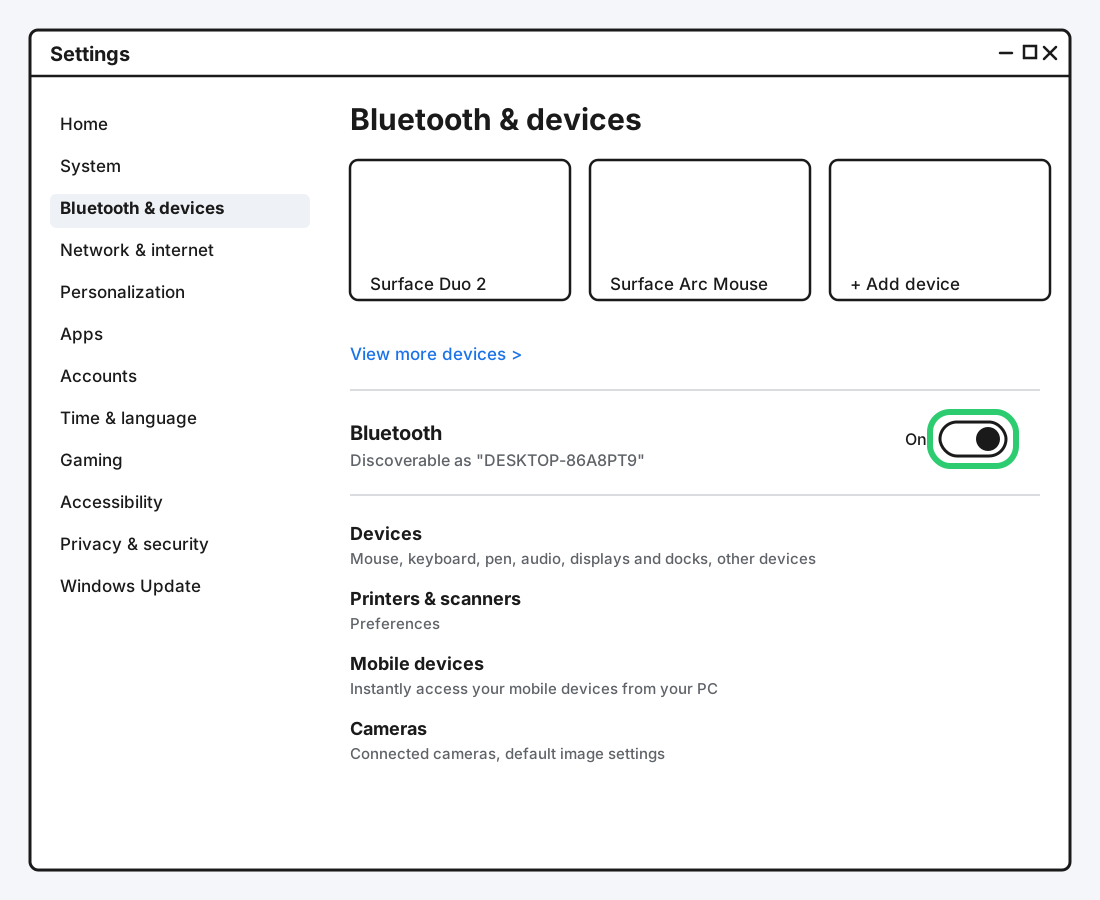
Step 1: Open Bluetooth & Devices
Go to Settings > Bluetooth & devices.
Step 2: Find the Device in Your List
Scroll to "Your devices" and locate the problem device, even if it shows as disconnected or stuck.
Step 3: Remove It
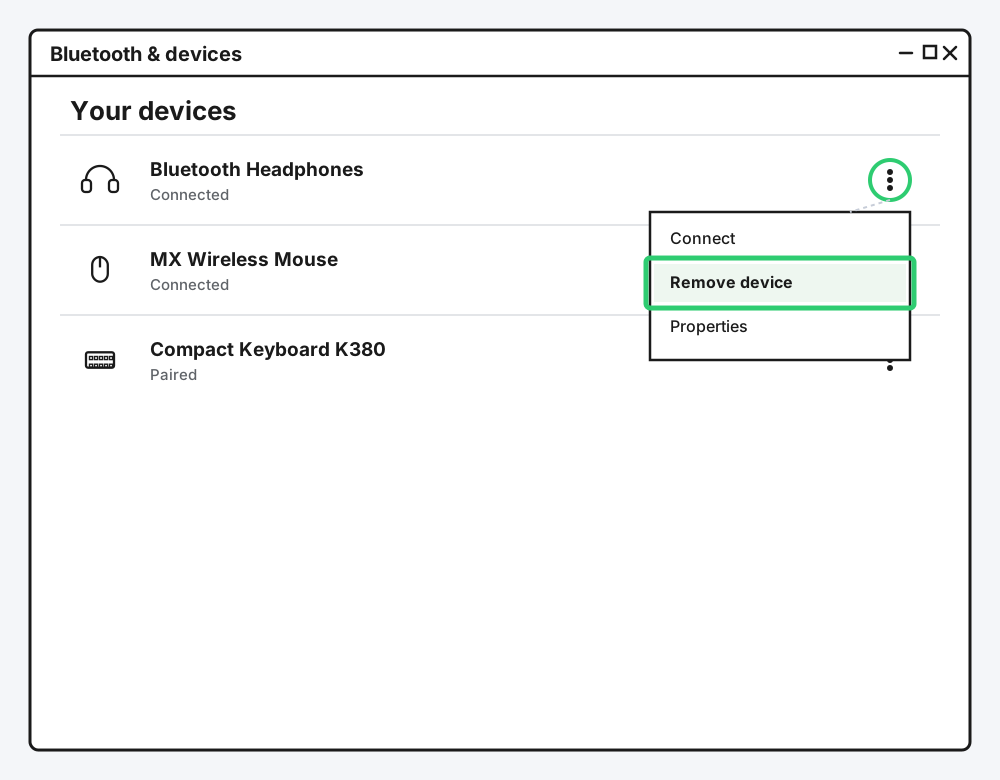
Click the three-dot menu next to the device and choose "Remove device." Confirm if prompted.
Step 4: Put the Device Back in Pairing Mode and Re-Add It
Turn the device off and back on, or hold its dedicated pairing button, then go back to Settings and add it as if you'd never paired it before. This forces Windows to generate a fresh key instead of reusing the broken one.
Method 2: Actually Get the Device Into Pairing Mode
"Add a device" finding nothing at all is almost always a pairing-mode problem, not a Windows problem, and it's worth being specific here because every accessory type does this differently.
Step 1: Open the Add a Device Panel
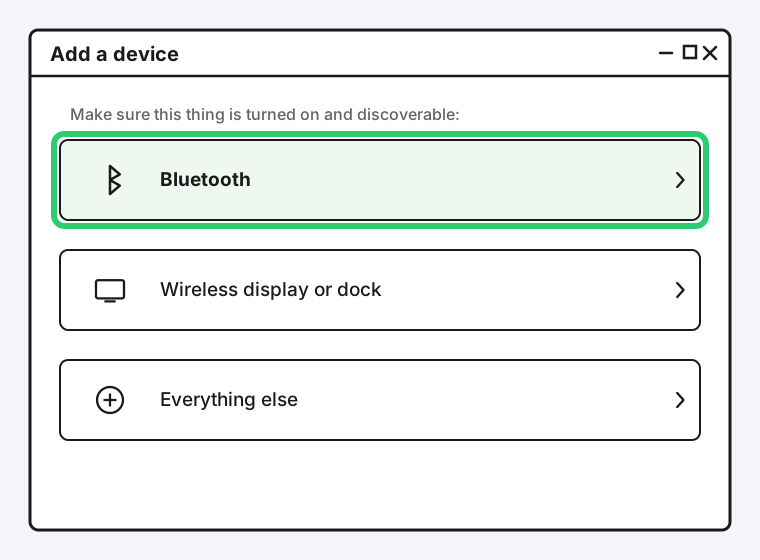
Go to Settings > Bluetooth & devices > Add device, then choose Bluetooth from the list.
Step 2: Trigger Pairing Mode for Your Specific Device Type
A Bluetooth keyboard or mouse typically needs a dedicated pairing button held for 3 to 5 seconds until its status light starts flashing, not just its power switch flipped on. A Bluetooth headphone or speaker usually needs to be powered on while no other device is connected to it, which triggers pairing mode automatically, or held on the power button an extra few seconds if it's already been used before. Check the light pattern: a slow, steady blink almost always means "ready to pair," while a solid light usually means "already connected to something," which explains why it isn't showing up.
Step 3: Watch for the Device to Appear, Then Select It
Give it 10 to 15 seconds. If nothing appears, the device likely dropped out of pairing mode already. Most accessories only stay discoverable for 30 to 60 seconds before giving up, so redo Step 2 and move faster to Step 3 this time.
Method 3: Handle the Pairing Code Prompt Correctly
Some devices, keyboards especially, show a passcode confirmation step that trips people up simply because they've never seen it before.
Step 1: Read What Windows Is Actually Asking
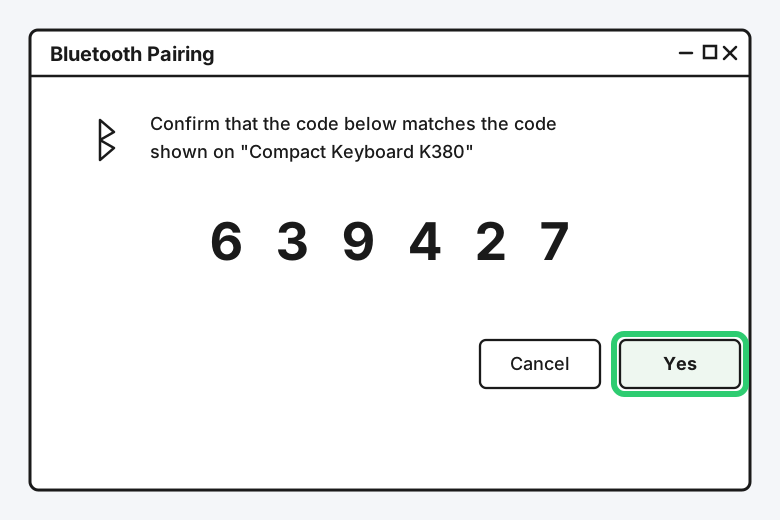
If a numeric code appears on your screen, check whether the device itself is also showing a code (compare-and-confirm) or has a field to type into (type-to-pair). Most modern keyboards use compare-and-confirm.
Step 2: Confirm on Both Sides Within a Few Seconds
For compare-and-confirm, click "Yes" on your PC only if the numbers genuinely match, then confirm on the device itself if it has its own confirm button. For type-to-pair, type the exact code shown on your PC using the device (this is common for keyboards, since they can't display their own code) and press Enter.
Step 3: Don't Let the Prompt Time Out
This step has a short window, often 20 to 30 seconds. If you're mid-confirmation and it disappears, you didn't do anything wrong. Just start the pairing process again and move through this step faster.
Method 4: Only One Device Can Actively Pair at a Time
If you're trying to pair a second new device while a first one is still mid-handshake, stop. Windows' Bluetooth pairing process genuinely struggles to run two discovery/pairing sessions at once, and the second one will usually just fail or hang. Finish one device completely, confirmed connected in your devices list, before starting the next.
Method 5: Fix a Device Stuck on "Connecting..."
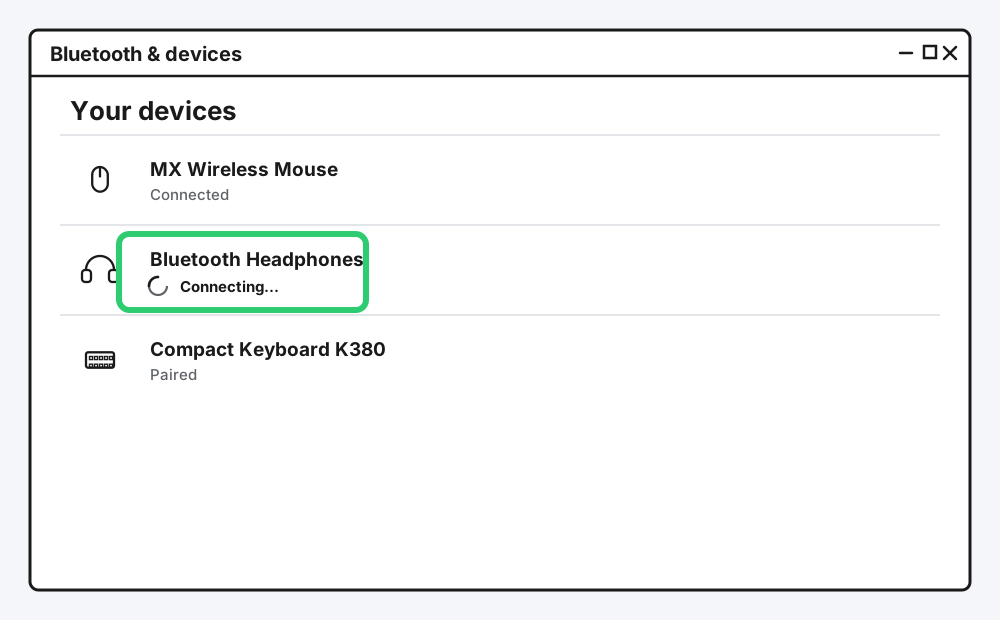
A status that never resolves past "Connecting..." means the handshake stalled partway through, not that it's still working.
Step 1: Give It a Genuine 30 Seconds
Some devices, especially ones waking from a low-power state, really do take that long. Anything beyond that isn't going to finish.
Step 2: Cancel and Remove the Device
Click the three-dot menu and remove it, same as Method 1, rather than waiting indefinitely or repeatedly clicking connect.
Step 3: Restart the Bluetooth Radio Before Retrying
Toggle Bluetooth off in Settings, wait ten seconds, turn it back on. This clears whatever half-finished handshake state Windows was holding onto, then re-pair the device from scratch.
Method 6: Rule Out Interference and Range
If pairing succeeds but the device keeps dropping afterward, that's usually not a pairing problem at all, it's a signal problem, and it's worth ruling out before you assume something's broken.
USB 3.0 ports and hubs are a known, well-documented source of Bluetooth interference on the same frequency band, and placing a Bluetooth adapter or dongle right next to one is a common, easy-to-miss cause. A crowded 2.4GHz environment, a lot of Wi-Fi routers and other Bluetooth devices nearby, can also degrade the connection even when pairing itself works fine. Try moving the receiving PC or dongle a few inches away from other electronics, and if you're using an external Bluetooth adapter, a short USB extension cable to get it off the motherboard entirely often helps more than it should.
Still Not Working?
If you've worked through all six methods and the device still won't pair reliably, it's worth checking whether the accessory itself has a known firmware issue or a genuinely failed Bluetooth radio, both of which are outside what a troubleshooting article can diagnose blind. Microsoft's own Bluetooth support page is the right next step, and if the device is from a specific manufacturer like Logitech or Sony, their own support pages often have accessory-specific pairing quirks documented that a general Windows guide can't cover.
Frequently Asked Questions
Why does my Bluetooth device pair fine with my phone but not my PC?
Most Bluetooth accessories can only stay actively connected to one device at a time. If it's currently connected to your phone, disconnect or forget it there before trying to pair it with your PC.
How long should Bluetooth pairing actually take?
Real pairing, from selecting the device to it showing as connected, should take under 30 seconds. Anything that hangs well past that has stalled, not just slow.
Do I need to remove a device before re-pairing it, or can I just try again?
Remove it first. Simply retrying without removing the old pairing record often fails the same way again, since Windows keeps reusing the broken stored key rather than generating a new one.
Why does a pairing code appear for some devices and not others?
It depends on the device's Bluetooth profile. Simpler accessories like headphones often pair automatically with no code, while keyboards and some mice use a passcode step specifically because there's no other secure way to confirm you're pairing the right device in a room with several nearby.
Can a USB port really interfere with Bluetooth?
Yes, specifically USB 3.0 ports and hubs, which are documented to emit interference in the same 2.4GHz range Bluetooth uses. It's a genuinely common, overlooked cause of intermittent disconnects after otherwise-successful pairing.
Quick Summary
Start by removing the old pairing record and re-adding the device from scratch, since a stale stored key is the most common cause of pairing failures. If the device never shows up at all, double-check you're actually triggering its specific pairing-mode gesture, not just powering it on. Handle any passcode prompt within its short time window, only pair one device at a time, and if a pairing stalls on "Connecting...", remove it rather than waiting it out. If everything pairs but keeps dropping afterward, look at USB 3.0 interference before assuming the device itself is faulty.
Related Articles
Bluetooth Not Working? How to Fix It (Windows, 2026)
Bluetooth stopped working on your Windows PC? Here are six real fixes, starting with the one that solves it most often: restarting the Bluetooth service.